How to Log In to WordPress Admin Dashboard 2026
How to Log In to WordPress Admin Dashboard: The Complete Guide
So, there you have it! You’ve just made your new WordPress site and you’re about to make your first post to share the news with the world and then… you realize you have absolutely no idea how to log into your dashboard! If you’re in the same position, take comfort.
It happens to everyone and probably happens to more than just a few of the millions of other people a day that Google ‘wordpress login’.
WordPress is so widespread on the internet but it does so in the quiet of the backend and many first-timers struggle to find their dashboard for quite a bit. I’ll show you exactly where you need to go and the solutions if the standard methods aren’t working for you. We will cover every logical and less logical method for you to find your way to the WordPress backend – whether you just bought your domain or haven’t touched your blog for months. You’ll be logged in in no time.
Why WordPress Login Feels Confusing at First
Why WordPress Login can seem Confusing When you consider that over 43% of all websites use WordPress, you would expect there to be a glaring ‘Login’ button on everyone’s homepage for their website.
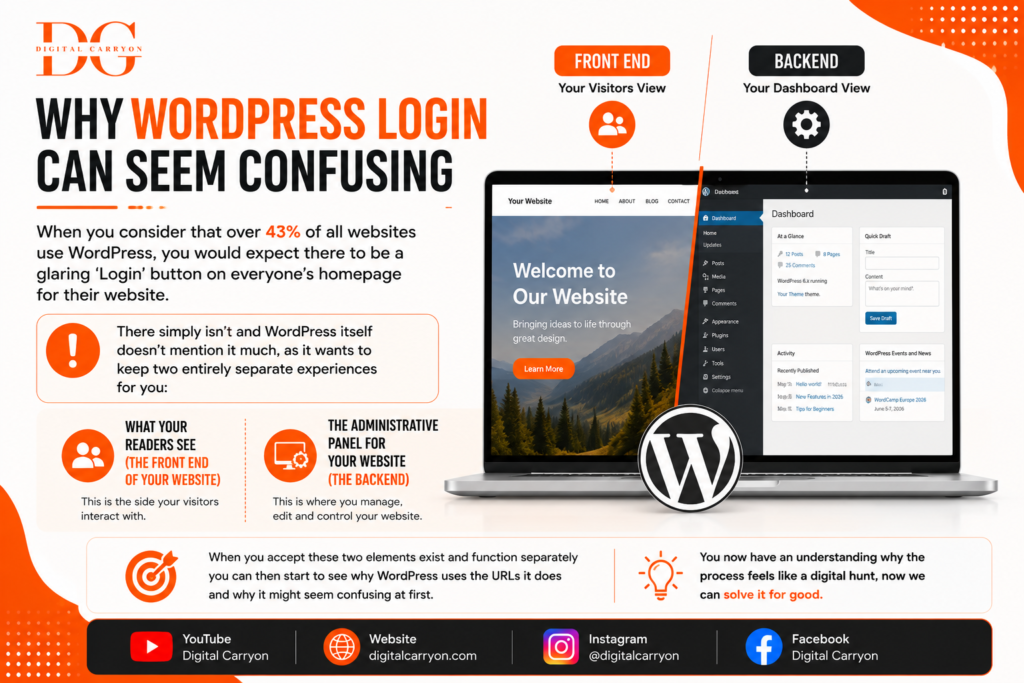
There simply isn’t and WordPress itself doesn’t mention it much, as it wants to keep two entirely separate experiences for you: What your readers see. (the front end of your website) The administrative panel for your website (the backend). When you accept these two elements exist and function separately you can then start to see why WordPress uses the URLs it does and why it might seem confusing at first. You now have an understanding why the process feels like a digital hunt, now we can solve it for good.
Three standard WordPress login URLs Now most confusion regardingwordpress login comes from using the wrong URL.
There are three basic URLS you can try first:
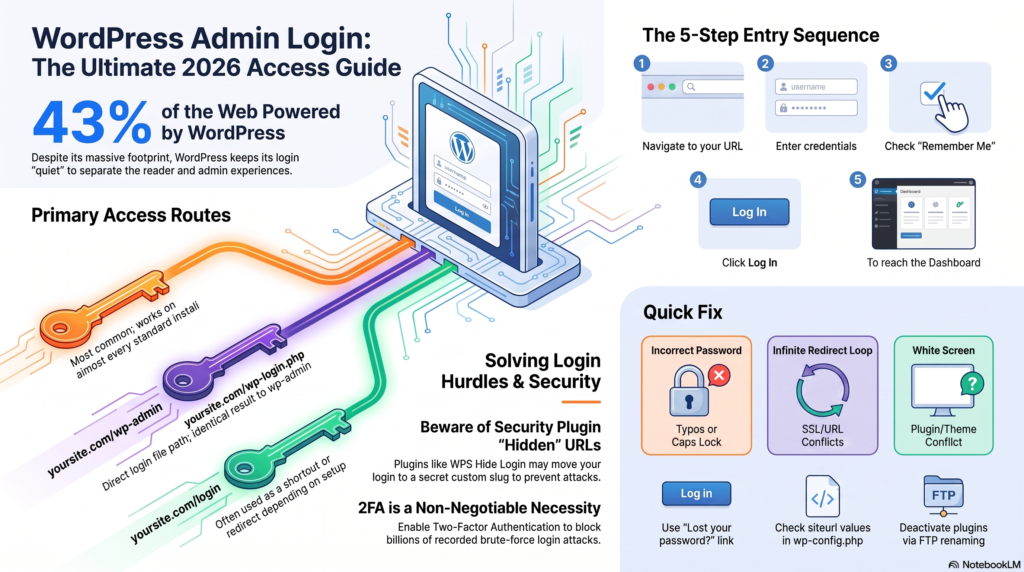
Most confusion around wordpress login comes down to one thing: not knowing the correct URL. Here are the three you should try, in order.
| Login URL | When to Use It |
| yoursite.com/wp-admin | Most common; works on almost every standard WordPress install |
| yoursite.com/wp-login.php | Direct login file path; identical result to wp-admin |
| yoursite.com/login | Sometimes redirects automatically, depending on your setup |
Simply replace “yoursite.com” with your actual domain. If you’re logged out, WordPress automatically redirects any of these URLs to its login form, asking for your username or email and password.
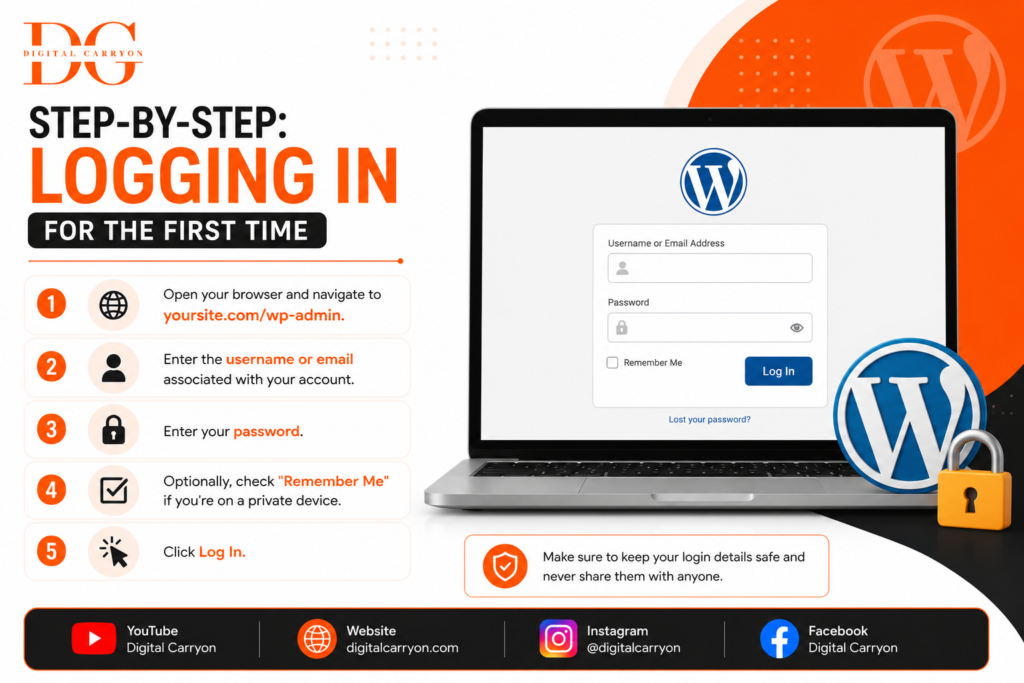
Step-by-Step: Logging In for the First Time
- Open your browser and navigate to yoursite.com/wp-admin.
- Enter the username or email associated with your account.
- Enter your password.
- Optionally, check “Remember Me” if you’re on a private device.
- Click Log In.
That’s it — you’ll land on your WordPress Dashboard, the control center for everything from publishing content to installing plugins.
Personal tip: If you manage multiple client sites, bookmark each /wp-admin URL individually rather than relying on memory. It sounds obvious, but I’ve seen freelancers waste 20 minutes trying random domain variations because they assumed every client’s login worked the same way (spoiler: custom permalinks and security plugins can change things).
What If wp-admin Doesn’t Work?
This is where things get interesting, and where most generic tutorials stop short. Here’s what’s actually going on when the standard URL fails.
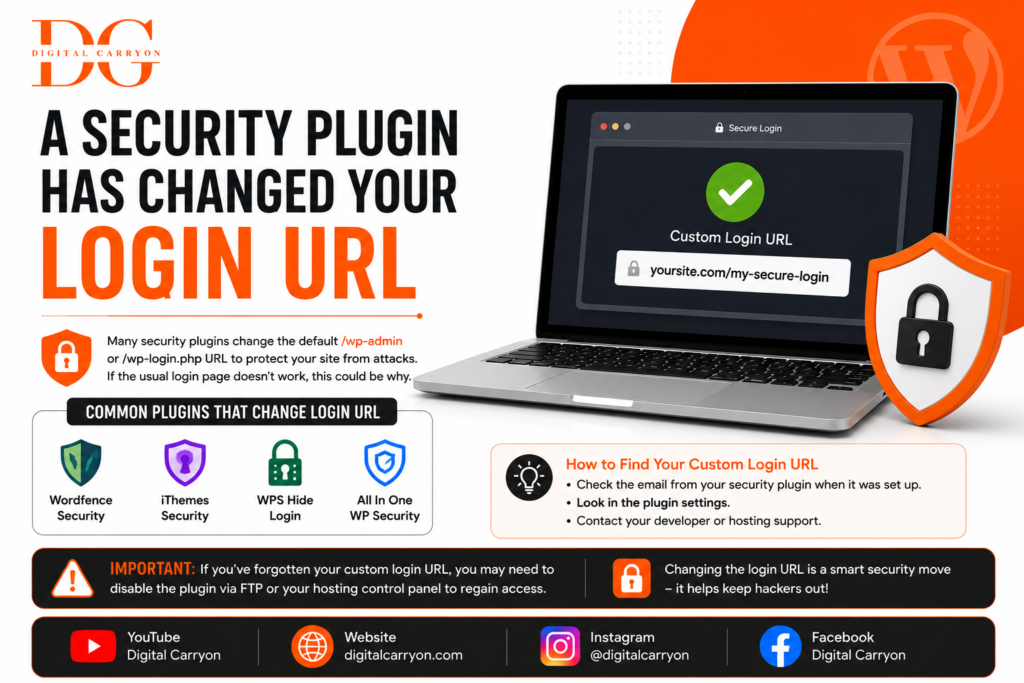
1. A Security Plugin Has Changed Your Login URL
WPS Hide Login, iThemes Security, or other security plugins hide the default /wp-admin and move it to a custom slug like “secret-login”. To regain access if you installed one and forgot the slug, either look up the login in your browser’s password manager or FTP into your website to rename the plugin folder to make it temporarily inactive.
Custom Login page A developer may have created a custom login page using a plugin like Theme My Login for your website. If so, you’ll want to either visit who developed your website for this information or to search around your site to look for the “Login” link. It often will appear in the footer of your page.
.htaccess file in server Some web hosting configuration or “.htaccess” files may completely block your access to “wp-login.php” by giving your server 403, 500 errors. When a webhost account migrates servers, this issue often occurs. The fastest route to fix it will likely be to call your web host and ask for help in recovering it and/or correcting your wp-admin file permissions.
Common WordPress Login Errors and How to Fix Them
It’s a regular occurrence that the most experienced WordPress users hit this one. Here is your go-to chart of common WordPress login issues and the recommended solution.
| Error | Likely Cause | Quick Fix |
| “Error: The password you entered is incorrect” | Wrong password or caps lock on | Use the “Lost your password?” link |
| Infinite redirect loop | Conflicting SSL/URL settings | Check siteurl and home values in wp-config.php or database |
| White screen after login | Plugin/theme conflict | Deactivate plugins via FTP by renaming the plugins folder |
| “This site can’t provide a secure connection” | SSL certificate misconfiguration | Contact your host to reissue or renew SSL |
| Locked out after failed attempts | Security plugin rate-limiting | Wait the cooldown period or reset via database |
If you’ve forgotten your password entirely, click “Lost your password?” on the login screen. WordPress will email a reset link to the address on file — assuming your site’s email delivery is working, which is its own common headache worth mentioning: many self-hosted WordPress sites fail to send emails reliably because of missing SMTP configuration. Plugins like WP Mail SMTP solve this by routing password reset emails through a proper mail service.
If you forgot your password completely, simply hit the “Lost your password?” link on the login page. WordPress will send a password reset link to your listed email account-assuming your website actually sends emails reliably, which can be another hurdle altogether, many self-hosted WordPress sites have trouble with reliable sending due to missing SMTP settings, but something like WP Mail SMTP can fix that.
Total lockout: Your last options to access WordPress
What if you’ve lost both your password and your email address? Take a breath. You have a couple of good options.
Option 1: Via phpMyAdmin
Using your web hosting’s control panel (such as cPanel, Plesk, etc.), access phpMyAdmin and click on your WordPress database.
Navigate to the wp_users table.
Find your user name in the list, and then click the “Edit” button (often represented by a pen icon) to edit the specific user row.
In the “user_pass” field, click the dropdown next to the password box and select MD5, then type in a new password into the box.
Save the record, and now you should be able to log in with your new password.
Option 2: Create a New Admin User via FTP
If phpMyAdmin sounds too complicated for you, there are other official WordPress documentation guides that offer ways to edit your theme files via FTP and temporary adding some PHP code snippet to your functions.php file that create a new admin account.
You will still need access to your web host account to implement either of these solutions. This is why storing your web hosting login details safely is crucial.
The two-factor authentication step you probably skipped
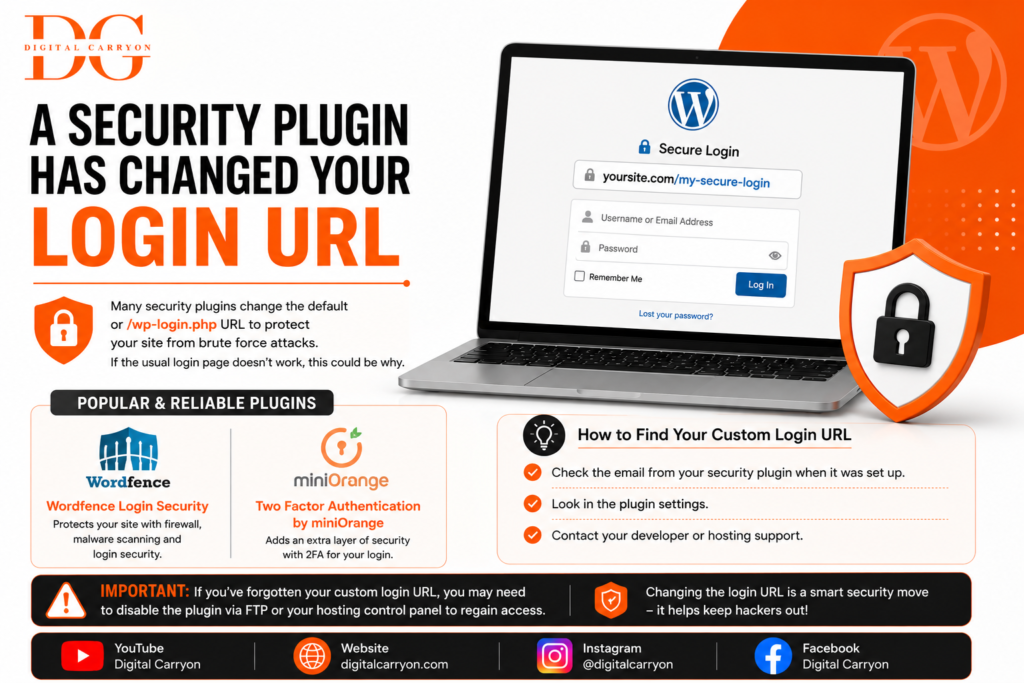
Here’s an inconvenient reality: login pages are by far the most vulnerable parts of most WordPress websites. Wordfence recorded over three billion brute force login attacks on its users in 2024 alone. A good solution is a plugin for adding two-factor authentication (2FA), requiring a user to enter a code from their mobile device as well as their password.
Here are a couple of popular and reliable plugins:
Enable 2FA as this week’s to-do, not “someday,” if you haven’t done so already. It makes the difference between a small inconvenience and having your whole site compromised.
A few habits can prevent many login issues:
A few habits go a long way toward avoiding login headaches altogether:
- Use a password manager. Programs like Bitwarden or 1Password can help prevent password amnesia altogether.
- Limit login attempts. Plugins such as Limit Login Attempts Reloaded can block an IP address after several failed attempts.
- Never use the username “admin.” It’s the most obvious username in most brute-force attacks.
- The number one security vulnerability, according to Sucuri’s annual hack website report, comes from out-of-date plugins, themes, and core software.
- Bookmark the URL for your login page. If you use a custom login page, it is vital to have that bookmark saved.
Pre-Flight Check Before Closing This Article:
- Bookmark your /wp-admin or your custom login page URL.
- Save login information in a password manager.
- Enable two-factor authentication on your website.
- Test your website’s email deliverability, including sending password reset emails.
- Write your hosting login information separately from your WordPress login details.
Wrapping Up
Logging into your WordPress admin dashboard should be the easiest part of running your site — and once you understand the standard URLs, common error causes, and a couple of backup recovery methods, it genuinely is. The real value isn’t just knowing the login steps; it’s building habits (password managers, 2FA, bookmarks) so you never have to relive the panic of being locked out of your own website.
Got a login issue this guide didn’t cover, or a horror story about being locked out at the worst possible moment? Drop it in the comments below — chances are someone else reading this has the exact same question. And if you found this useful, consider subscribing for more practical, no-fluff WordPress tutorials delivered straight to your inbox.