How to Use WordPress as a Website Builder: A Practical Guide
If you’re planning to build a website, you’ve probably come across WordPress. But there’s still a common misconception that WordPress is mainly a platform for blogging.
That’s no longer the whole picture.
WordPress can be used to build blogs, business websites, portfolios, online stores, service websites, membership sites, and much more. In fact, WordPress powers more than 43% of websites on the internet, according to W3Techs.
So, if you’re looking for a WordPress as a website builder, you may be wondering: Can WordPress really replace tools like Wix or Squarespace? And if I’m a beginner, where should I even start?
The answer is yes—but WordPress works a little differently.
Instead of giving you one closed system where everything is managed for you, WordPress gives you more control over your hosting, design, plugins, content, and website functionality.
That extra freedom comes with a small learning curve, but it also gives you much more room to grow.
In this guide, you’ll learn how to use WordPress as a website builder, from choosing hosting and a theme to creating pages, adding useful plugins, improving SEO, and avoiding the mistakes beginners commonly make.
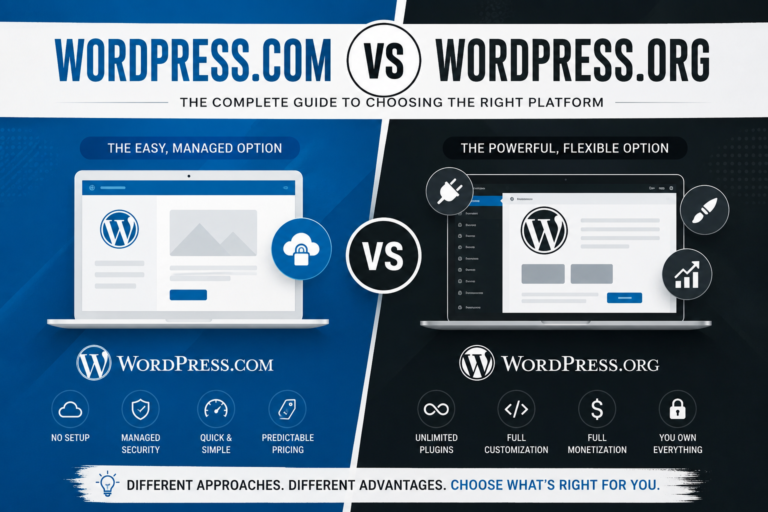
WordPress.org vs WordPress.com: understand the difference before building.
WordPress.org vs. WordPress.com: Get This Right First
Before you start building anything, there’s one WordPress distinction you need to understand.
WordPress.org and WordPress.com are not the same thing.
This is one of the most common sources of confusion for beginners.
WordPress.org
WordPress.org provides the free, self-hosted WordPress software. You install it on a web hosting account and manage your website yourself.
This gives you control over your website’s code, content, design, themes, plugins, and hosting environment.
WordPress.com
WordPress.com is a hosted service where the hosting and much of the technical infrastructure are managed for you. It’s closer to the experience offered by hosted website builders such as Wix.
The simpler setup can be useful for beginners, but you may have more restrictions depending on your plan.
If your main goal is flexibility and long-term control, WordPress.org is generally the better fit. That’s the version we’ll focus on throughout this guide.

Choosing WordPress gives you more control over design and functionality.
Why Choose WordPress Over Wix, Squarespace, or Shopify?
This is a fair question.
Website builders such as Wix and Squarespace can be easier when you’re creating your first simple website. You usually get hosting, templates, and visual editing in one place.
So why would someone choose WordPress instead?
The biggest reason is control.
With WordPress.org, you have considerably more flexibility over your website’s design, functionality, SEO, hosting, and future growth. The tradeoff is that you have more things to learn and manage.
| Feature | WordPress.org | Wix | Squarespace |
| Ownership | Full ownership | Limited hosted platform | Limited hosted platform |
| Cost flexibility | Choose hosting and tools | Fixed monthly plans | Fixed monthly plans |
| Design flexibility | Themes + custom code | Template-based | Template-based |
| Plugin ecosystem | 60,000+ plugins | Smaller app marketplace | Limited extensions |
| SEO control | Deep control | More limited | Moderate |
| Scalability | Excellent | Good for smaller sites | Good for small-to-mid sites |
| Learning curve | Moderate | Very low | Low |
The tradeoff is straightforward: WordPress requires more learning upfront, but gives you more freedom later.
Step 1: Set Up Hosting and Install WordPress
Before WordPress can become your website builder, it needs somewhere to run.
That’s where web hosting comes in.
WordPress.org software itself is free, but your website needs a server where its files and database can live.
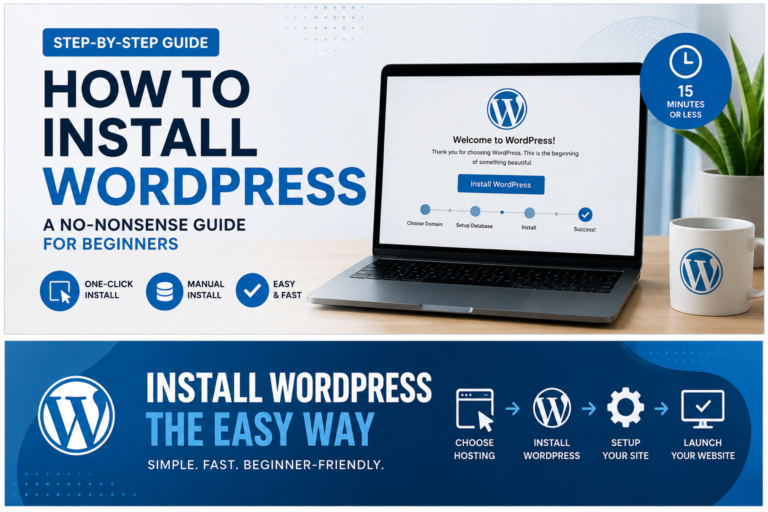
If you’re a beginner, one of the easiest options is to choose a hosting provider that offers a one-click WordPress installation.
- Choose a hosting plan.
- Register or connect your domain name.
- Use your host’s WordPress installer.
- Complete the installation.
- Log in to your WordPress dashboard.
Shared hosting can be enough when you’re starting out, and you can move to a more powerful plan as your website grows.
Choose a page-building approach that matches your project.
Step 2: Choose a Theme That Matches Your Goals
Once WordPress is installed, the next major decision is your theme.
A theme controls much of your website’s visual foundation, including things such as layout, typography, colors, and overall structure.
Pre-built themes
You can choose from thousands of WordPress themes, including free options in the official WordPress theme directory and premium themes from third-party marketplaces.
Block-based themes
Modern WordPress also supports block-based themes that allow you to visually edit more parts of your website directly through WordPress.
Don’t choose a theme only because it looks impressive. A theme can have dozens of animations and design effects, but that doesn’t automatically make it better.
A lightweight and well-coded theme can give you a better starting point, particularly if website speed matters to you.
Step 3: Choose How You Want to Build Your Pages
This is where WordPress starts feeling much more like a traditional WordPress website builder.
You have several ways to create your website’s layout.
Gutenberg / WordPress Block Editor
The WordPress block editor is built into WordPress and is a good option for blogs, portfolios, simple business websites, and many standard pages.
You build your page using individual blocks such as headings, paragraphs, images, buttons, columns, lists, and videos.
Elementor
Elementor provides a more visual approach to website design and can be useful when you want greater control over layouts and design without writing CSS manually.
Divi and Beaver Builder
Divi and Beaver Builder are additional visual page-building options. They can be useful for agencies, template-heavy projects, or users who want more visual control.
| Page Builder | Best For | Free? | Learning Curve |
| Gutenberg | Simple to moderately complex websites | Yes | Low |
| Elementor | Custom visual designs | Yes, with paid Pro tier | Low–Moderate |
| Divi | Agencies and templates | Paid | Moderate |
| Beaver Builder | Visual page building | Limited trial | Moderate |
Practical advice: Don’t install a page builder just because you think you need one. Start with the WordPress block editor and see how far you can go. If you reach a genuine design limitation, then consider a dedicated builder.
Install only the plugins that solve a real need.
Step 4: Install Only the Plugins You Actually Need
Plugins are one of the biggest reasons WordPress can work as a flexible WordPress website builder.
A plugin adds functionality to your website without requiring you to build everything from scratch.
- SEO: Tools such as Yoast SEO or Rank Math.
- Security: Tools such as Wordfence or Sucuri.
- Performance: Caching and optimization tools.
- Backups: Tools such as UpdraftPlus.
- Forms: Contact and lead-generation plugins.
- E-commerce: WooCommerce for online stores.
Don’t fall into the plugin trap. You don’t need a plugin for every small feature. Too many plugins can make a website harder to manage and may affect performance.
Build the essential pages that visitors expect to find.
Step 5: Build Your Core Pages
Now comes the part where your website starts to look like a real website.
Homepage
Your homepage should quickly tell visitors what your website is about, who it’s for, and what they can do next.
About Page
Your About page helps visitors understand who is behind the website or business and gives you an opportunity to build trust.
Services or Products Page
If you offer services or sell products, explain what you provide and, more importantly, how it helps the customer.
Contact Page
Make it easy for visitors to contact you. Depending on your business, this could include a contact form, email address, phone number, or location.
Blog
If content marketing and SEO are part of your strategy, a blog can help you publish useful information and attract visitors through search.
Keep your navigation simple. A menu such as Home | About | Articles | Services | Contact is often easier to understand than a menu packed with options.
Set up the basic SEO and performance foundations early.
Step 6: Optimize Your Website for SEO From Day One
Using WordPress doesn’t automatically make your website SEO-friendly. You still need to optimize your content and technical setup.
Use a clean URL structure
A simple URL such as yourwebsite.com/wordpress-website-builder/ is easier to understand than a URL full of unnecessary parameters or numbers.
Write unique titles and meta descriptions
Each important page should have a clear title and description that accurately tells searchers what they’ll find.
Optimize your images
Large image files can slow down your website. Compress images before uploading them and use appropriate file formats and dimensions.
Use proper headings
Keep your content organized with a clear H1 followed by relevant H2 and H3 headings.
Create and submit an XML sitemap
An XML sitemap helps search engines discover your important URLs. You can submit your sitemap through Google Search Console.
WordPress gives you extensive control over SEO, but having that control doesn’t automatically mean you’ll rank. Your content still needs to satisfy search intent and provide genuine value.
Always test your website across screen sizes before publishing.
Common Mistakes First-Time WordPress Website Builders Make
1. Skipping backups
Don’t wait until something breaks before thinking about backups. A backup is much more useful when you already have it.
2. Prioritizing design over performance
Animations and visual effects can make a website look impressive, but too many can create a poor user experience.
3. Using too many fonts and colors
Your website doesn’t need every font and color you can find. Choose a small, consistent design system.
4. Ignoring mobile users
Check font sizes, buttons, images, spacing, columns, menus, and forms on smaller screens before publishing.
5. Never updating WordPress
WordPress core, themes, and plugins should not simply be installed and forgotten. Updates can include security fixes, bug fixes, and improvements.
Is WordPress the Right Website Builder for You?
WordPress is a strong choice if you want more control over your website and expect it to grow over time.
- You want flexibility in design and functionality.
- SEO is important to you.
- You may add e-commerce later.
- You want to publish lots of content.
- You want more control over your website infrastructure.
- You’re willing to spend a little time learning how WordPress works.
Wix or Squarespace may be more suitable if your priority is the simplest possible setup for a small, relatively static website.
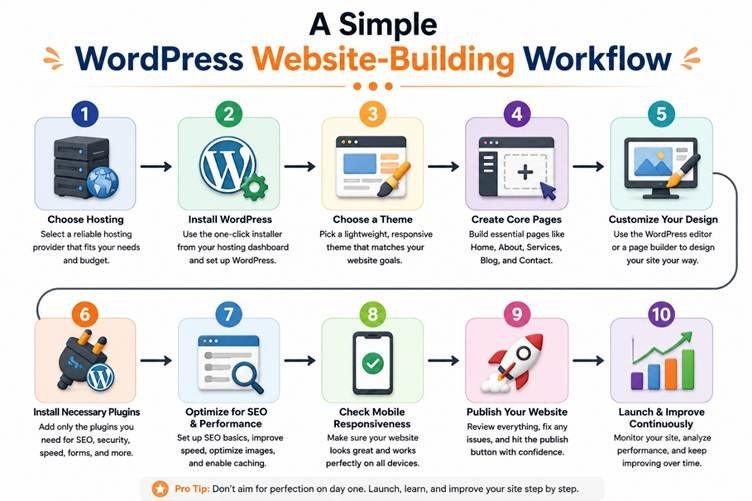
A simple visual workflow from hosting and installation to publishing and continuous improvement.
A Simple WordPress Website-Building Workflow
If you’re completely new to WordPress, the whole process can seem like a lot at first. You don’t need to do everything at once.
- Choose hosting
- Install WordPress
- Choose a lightweight theme
- Create your core pages
- Customize your design
- Install only necessary plugins
- Optimize for SEO and performance
- Check mobile responsiveness
- Publish your website
- Improve it continuously
This approach is much easier than trying to perfect your entire website on the first day.
Launch your website, then keep improving it based on real users and performance.
Final Thoughts
Using WordPress as a website builder isn’t about choosing the most complicated option. It’s about having enough control to build a website that can grow with you.
Yes, WordPress has a slightly bigger learning curve than some drag-and-drop website builders. You’ll need to understand hosting, themes, plugins, updates, and a few basic settings.
But once you understand those fundamentals, you have a lot of flexibility.
You can start with a simple blog and later turn it into a business website, portfolio, online store, membership site, or something much more customized.
And you don’t need to make everything perfect before you launch.
Start with your domain and hosting, install WordPress, choose a suitable theme, create the essential pages, and publish your first version. Then improve it gradually.
Ready to get started? Choose your hosting, install WordPress, and build your first few pages. Once the basic structure is ready, you can refine the design, add the features you actually need, and start creating content that brings visitors to your website.
FAQs
Is WordPress a website builder?
Yes. WordPress can be used as a website builder because it allows you to create pages, customize layouts, install themes and plugins, and build different types of websites without having to code everything from scratch.
Is WordPress better than Wix?
It depends on what you need. Wix can be easier for beginners who want a simple hosted website. WordPress generally provides more flexibility and control, especially when your website needs to grow.
Can I build a WordPress website without coding?
Yes. You can build many types of WordPress websites using themes and the block editor or visual page builders without writing code.
Do I need Elementor to build a WordPress website?
No. Elementor is optional. WordPress already includes its own block editor, which can handle many websites without requiring an additional page builder.
Is WordPress good for SEO?
WordPress provides extensive control over many SEO-related elements, but simply using WordPress doesn’t guarantee good rankings. Your content, technical setup, site performance, internal linking, and overall SEO strategy still matter.
Can WordPress be used for an online store?
Yes. WordPress can be extended for e-commerce using solutions such as WooCommerce.
Is WordPress difficult for beginners?
There is a learning curve, especially when compared with fully hosted drag-and-drop platforms. However, you don’t need to learn everything at once. Starting with hosting, themes, pages, plugins, and basic SEO is enough to get moving.
Internal Link Opportunities
- how to install WordPress — link to your WordPress installation guide.
- how to log in to WordPress — link to your WordPress login guide.
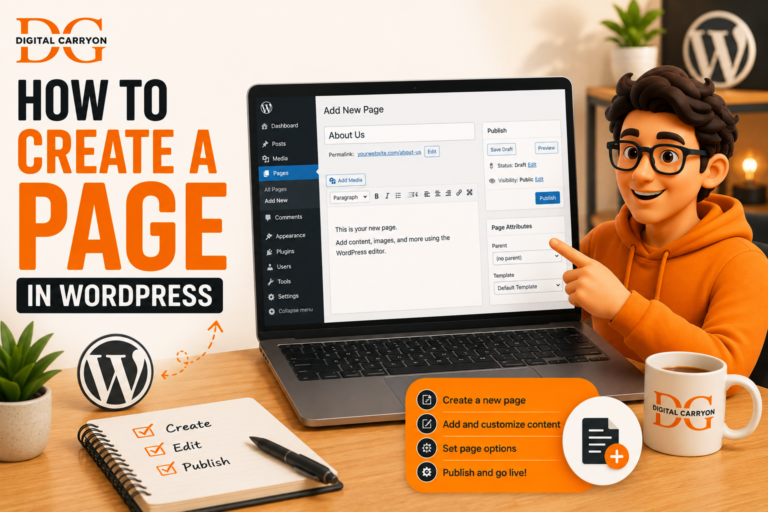
- how to create a page in WordPress — link to your page creation guide.
- WordPress dashboard — link to your WordPress admin dashboard guide.